Close the month
Closing locks the month so the numbers you reported cannot move.
Checked against the product on 2026-11-04
Step 1: Open Close and Periods
Pick the month in the period picker. The tiles show how many automatic checks passed, how many failed and how many manual items are left.
Step 2: Read the checklist
Automatic checks, such as the trial balance being balanced and every journal entry being posted, compute live from your books. Manual items are yours to tick once you have verified them outside Nexus.
Sample data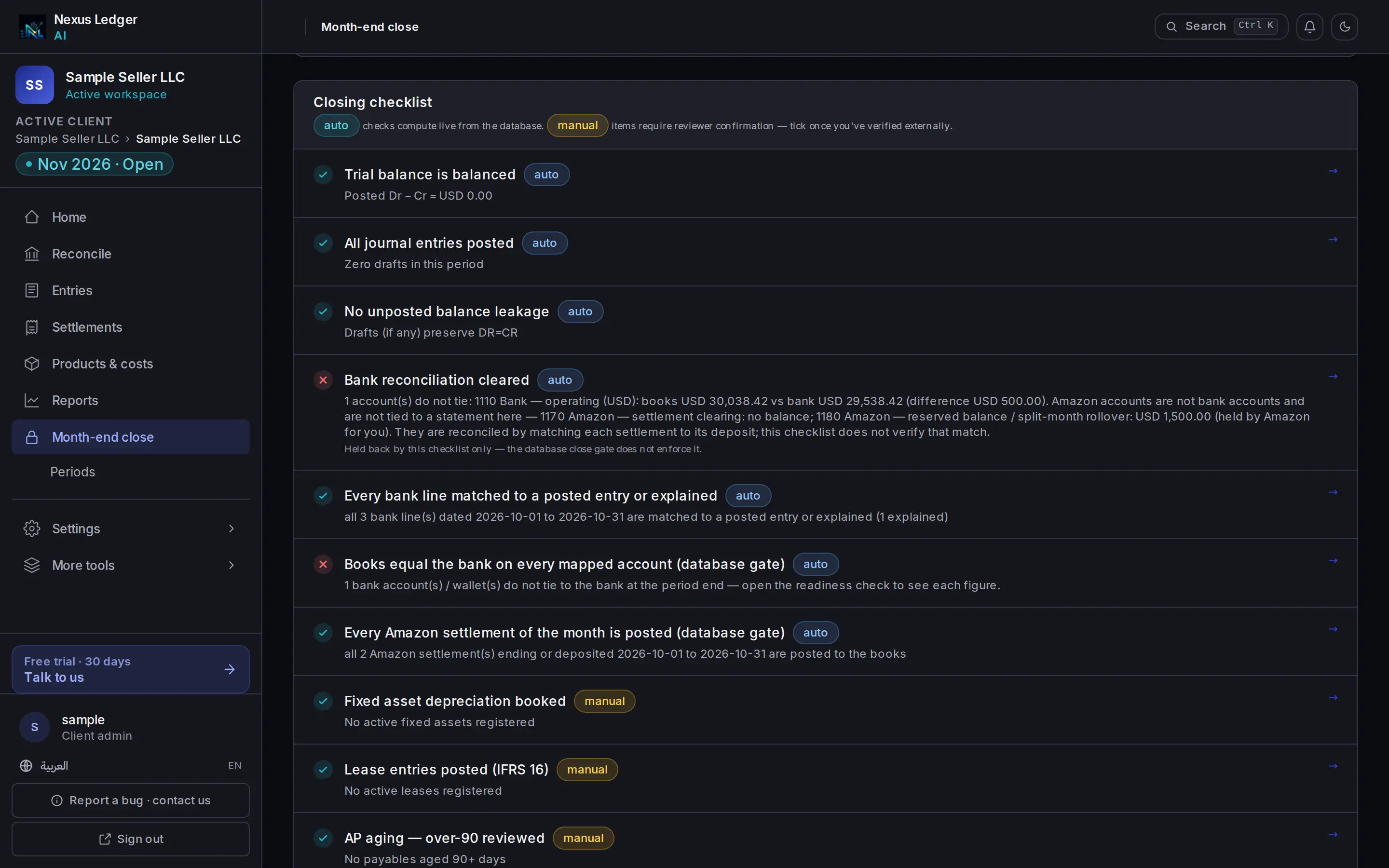
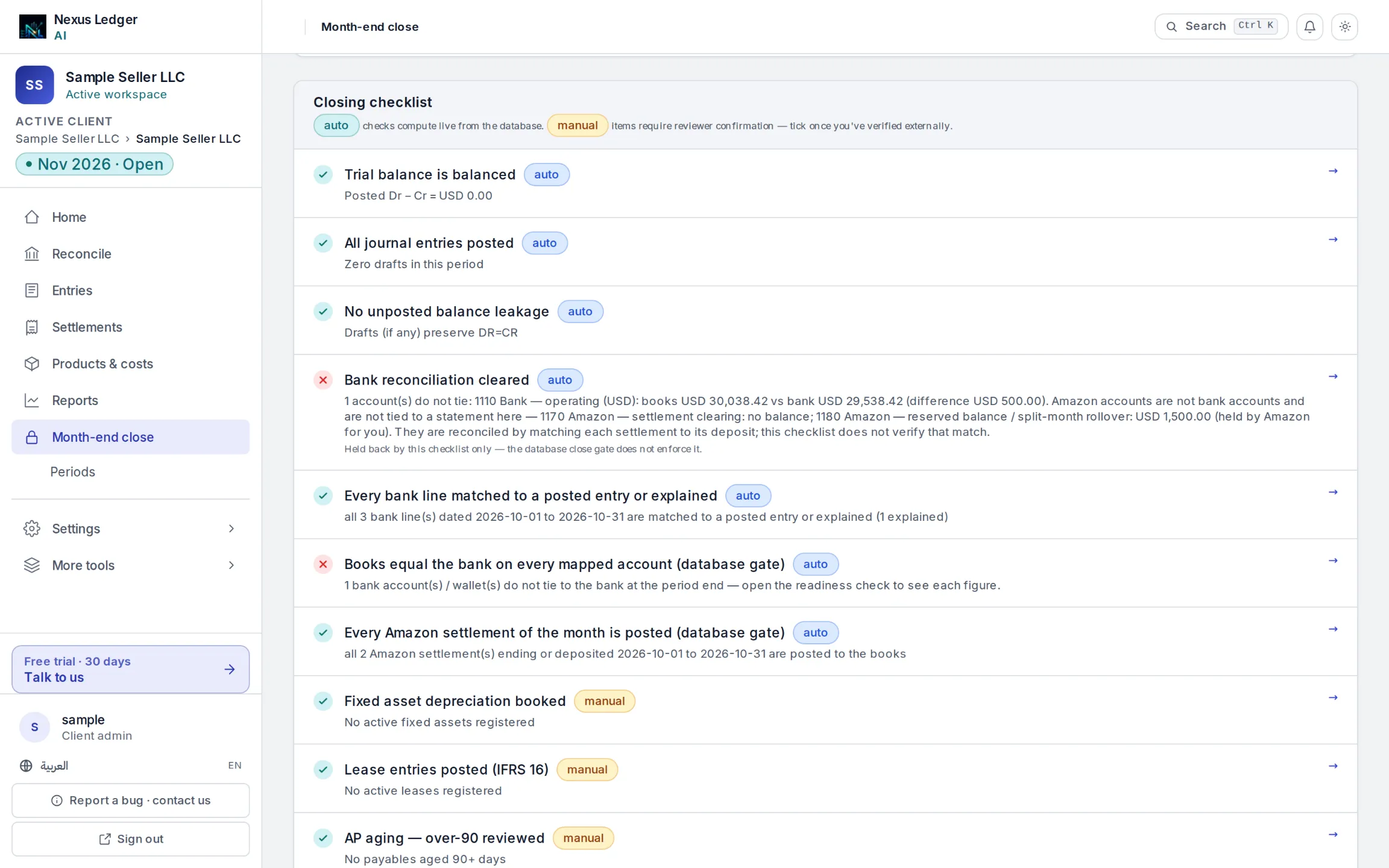
The month-end checklist. Step 3: Read the summary
Seller Growth and upPress Generate AI summary for a plain-language summary of what is still open for the month, shown above the checklist. It reads your books and writes; it changes nothing.
Step 4: Fix what is failing
Open a failing item and clear its cause: post the drafts still waiting, reconcile your payouts, price any unpriced SKUs. Close stays blocked while an automatic check fails.
Step 5: Close the period
Press Close period. Every entry in the period becomes locked. A new entry in a closed period needs an adjustment flag and an administrator.
Step 6: Reopen if you must
Reopening is for administrators only and is recorded in the audit log.

